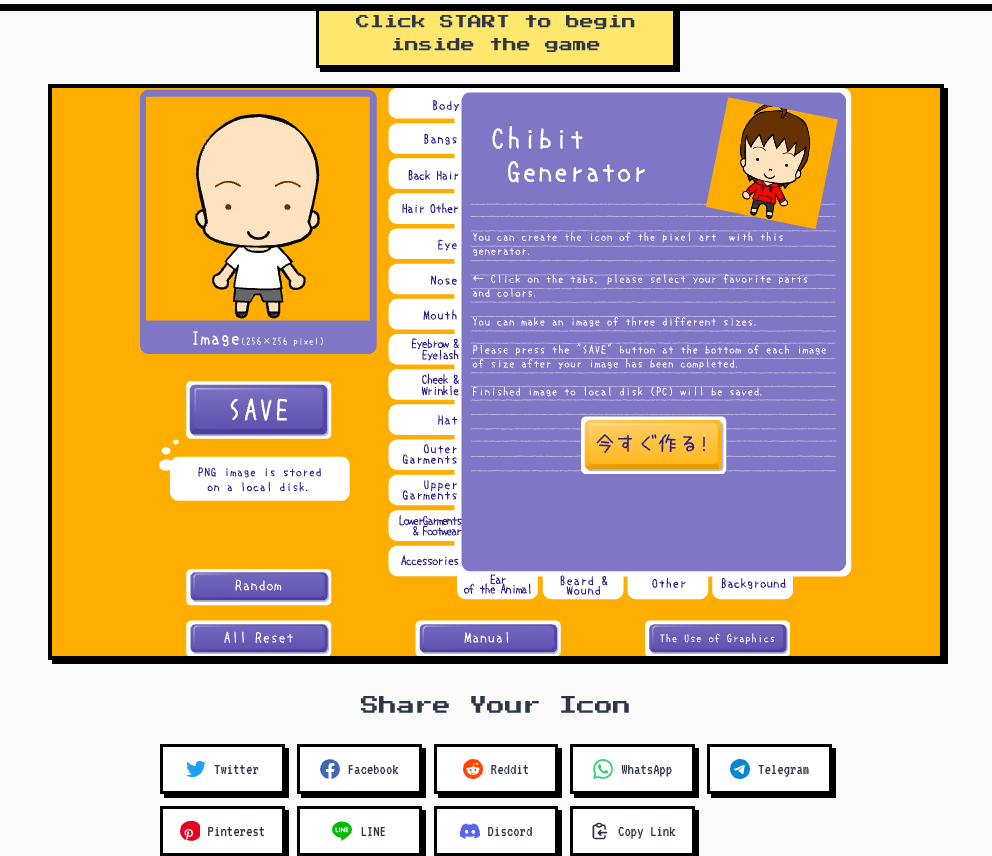
The Chibi Character generator, previously labeled Chibit, makes a 256px full-body character with an oversized head and compact pose. The larger canvas gives the outfit more room than a 48px pixel character.
Choose the body before the details
Open Chibi Character, press START, and establish the large shapes first:
- Choose the body and pose.
- Select hair that gives the head a clear outline.
- Build an outfit with one main color and one support color.
- Choose the face and expression.
- Add a final detail only if it remains visible at small size.
Make the outfit support the pose
The head attracts attention first, so the outfit should clarify the body rather than compete with it. Separate sleeves from the torso and legs from the background. Similar colors can make the character look like a single block after resizing.
Save and inspect the real file
Save the 256px PNG, open it outside the generator, and view a smaller copy. Keep the original file unchanged. If the destination uses a circle crop, check whether the feet or wide hair are hidden and whether the face still carries the identity.
Final check
- The pose is clear without zooming.
- Hair, face, and background do not merge.
- The outfit uses a limited set of colors.
- The saved PNG opens correctly.
- The destination crop keeps the important parts.
For a smaller hard-edged character, compare the Full-body Pixel generator.