7 min read
square-face-pixel-art-generator

How to Design a Retro 8-bit Square Face Icon

A retro 8-bit square face icon guide: use a square face pixel art generator to build a blocky avatar with game-era design constraints, then export a PNG.

The square face avatar and the 8-bit look are a natural fit. Both rely on hard edges, flat color, and a compact canvas, so a square face rendered in pixels looks intentional rather than simplified by accident. This guide focuses on the retro angle: how to use a square face pixel art generator to make an icon that follows the visual discipline of classic game sprites instead of looking like a modern portrait with a pixel filter.

Retro pixel art avatar generator guide

The editor handles the pixel rendering. Your job is to choose a strong square silhouette, simple facial features, and a restrained palette that still reads at avatar size.

What is a retro 8-bit square face icon?

A retro 8-bit square face icon is a blocky avatar that combines two visual constraints: a square head shape and the simplified language of early game graphics. It uses hard-edged pixels, no soft gradients, and a deliberately small set of colors. The square jaw gives the face a solid base that suits the pixel style, while the restricted detail keeps the eyes, hair, and expression readable at small sizes.

“8-bit” is often used as a visual shorthand rather than a literal hardware specification. A convincing retro icon does not need to reproduce one console's exact palette limits. It does need to feel designed under limits: few colors, clear clusters of pixels, and no smooth photo-like shading. The result should resemble a game character portrait, not a high-resolution image that was pixelated after the fact.

Why choose the 8-bit style over a smooth square face?

First, it survives small display sizes. Avatars are often shown at 24 or 32 pixels, and a design already built from bold blocks loses less information when reduced. A smooth illustration may blur; a pixel avatar keeps its main shapes.

Second, the style communicates a clear theme. In gaming, indie-development, and retro-computing communities, an 8-bit avatar feels at home beside sprites, game screenshots, and pixel interfaces.

Third, the constraints make decisions easier. With a limited palette and simple feature choices, there are fewer opportunities to overload the face. Beginners can often make a cleaner icon by choosing one bold shape at a time rather than trying to preserve realistic detail.

How do you build one with convincing 8-bit constraints?

1) Launch the pixel editor with a simple goal

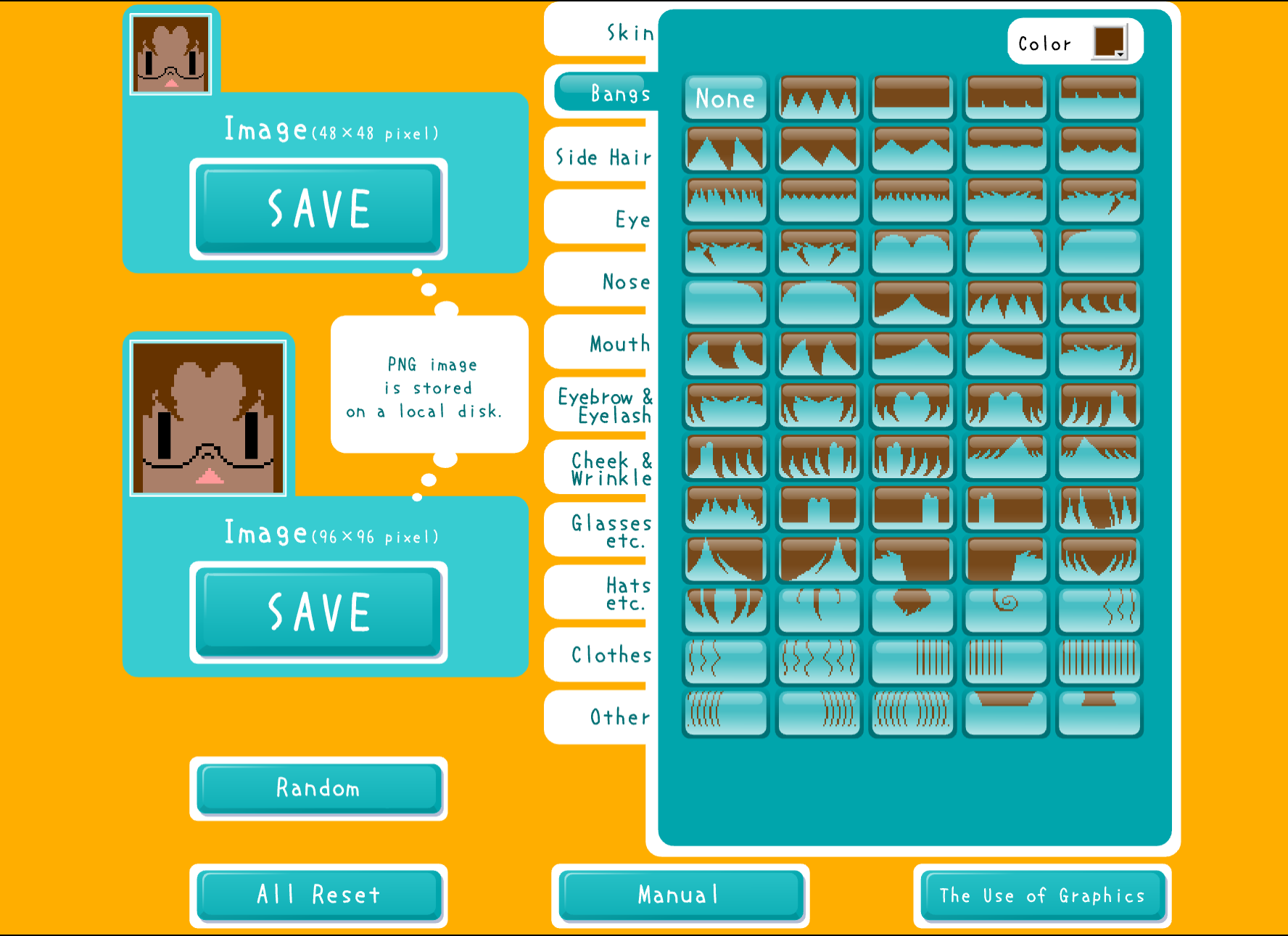
Open the generator and click START. Decide on one short direction before changing options, such as “dark-haired arcade hero” or “four-color handheld portrait.” The editor supplies the blocky rendering, while that direction keeps your feature and color choices consistent.

2) Establish the square jaw first

Choose a base face with a broad, visibly square lower edge. Hair can clip or break the top corners, but the bottom silhouette should remain straight enough to distinguish the design from a round or oval avatar. Check the outline before worrying about eyes or accessories.

3) Limit the palette on purpose

Early game sprites worked with strict palette limits, and borrowing that discipline is the fastest way to make an avatar feel retro. Aim for four or five visible colors: a skin tone, a hair color, a dark tone for features, and one or two accents. If two shades are almost identical, remove one or swap it for stronger contrast.

4) Choose features that read as pixel clusters

Pick eyes, eyebrows, and a mouth with clear shapes rather than fine lines. Treat hair as one solid mass with a few deliberate breaks, not a collection of individual strands. Add glasses, headphones, or a hat only if the accessory remains recognizable without hiding the square silhouette.

5) Preview small, then export as PNG

Look at the finished avatar at a compact size before downloading it. The eyes and mouth should separate clearly from the face, and the hair should not merge into the background. Once the icon passes that test, export the transparent PNG so its hard edges stay clean on Discord, Steam, Twitch, or a game-jam profile.

What color palette says “8-bit”?

Two broad directions work well. A limited console-style palette uses a few saturated colors with strong separation: a warm skin tone, bold hair, a near-black feature color, and one bright accent. A monochrome ramp inspired by early handheld screens uses three or four shades of one hue, such as green, amber, or blue. The first feels like an arcade or home-console portrait; the second leans into the handheld era.

Whichever direction you choose, value contrast matters more than the exact hues. The eyes and mouth are the smallest expression cues, so they should be clearly darker or lighter than the face. If the features and skin are too close in value, the avatar reads as a blank block once it shrinks.

For a squad or Discord role group, agree on one palette and one base silhouette, then vary the hair or accent color per person. The repeated constraints keep everyone recognizably part of the same set.

Where does a retro square face icon fit?

  • Gaming and development Discord servers. The blocky face fits the theme and stays visible in a compact member list.
  • Retro-focused Twitch channels. A streamer can echo the avatar's palette in panels, badges, and overlays for a coherent identity.
  • Game-jam and itch.io profiles. A pixel portrait quickly signals the kind of games or art you enjoy making.
  • Steam accounts and game forums. A retro sprite sits naturally beside pixel-game libraries and screenshots.

What separates a convincing retro icon from “fake old” pixel art?

The difference is usually visible in the palette and the shapes. A filtered high-resolution portrait may show large square blocks, but it often keeps dozens of nearly identical colors and soft-looking contours underneath. A convincing retro icon starts with simplified choices: a genuinely small palette, hard boundaries between colors, and features designed as compact clusters.

Do not judge authenticity by counting pixels alone. Instead, ask whether every color and feature has a job. If removing a shade changes nothing at avatar size, the design probably does not need it. If an accessory hides the jaw or eyes, simplify it. Retro style comes from purposeful limits, not from adding noise or artificial scan lines.

Mini FAQ

Q: Do I need to choose a 16x16 or 32x32 canvas?

A: No. The generator handles the pixel-style rendering. Use the full exported PNG, but judge your feature choices at roughly 32px so the icon works where people will actually see it.

Q: How many colors should an “8-bit” avatar use?

A: Four or five visible colors is a useful target for this style. It is not a literal rule for every historical console; it is a practical limit that keeps a modern avatar looking focused and retro.

Q: My square face looks flat and lifeless. What should I change?

A: Increase the contrast between the face and its features. Darken the eyes or hair, then add one lighter accent rather than several similar shades.

Wrap-up

A retro 8-bit square face icon combines a strong square jaw with the useful limits of classic game art: hard edges, simple features, and a small palette. Let the editor handle the pixel rendering, then make every option choice support a clear silhouette and readable expression.

Build one with the square face pixel art generator. If you prefer a cleaner, higher-resolution version of the same blocky face, the square face icon maker covers that side of the style.

🎨

Ready to create your avatar?

Turn your ideas into unique cartoon icons in minutes.

Start Creating Your Avatar →

Related Articles

View All Articles →