2 min read
Chibi Character Generator Guide: Build a 256px Full-Body Avatar
Use the Chibi Character generator to build a 256px full-body avatar with a clear pose and outfit.
Read →Create a 256px full-body chibi character with visible body, clothing, hair and accessory controls.
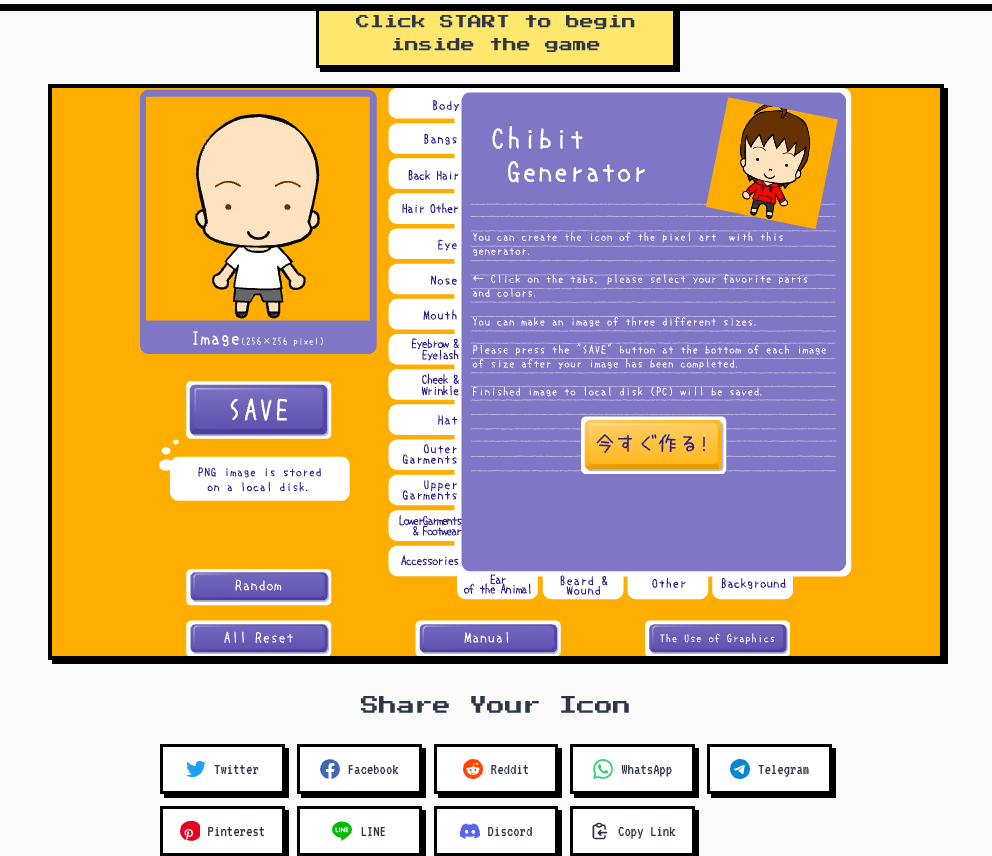
This editor creates a complete 256px character rather than a face-only crop. The preview keeps the body, clothing, hair and overall outline visible together.
The page uses Chibi for the character style. Chibit is the old tool name shown by the original editor. Choose the visible parts, then press Save when the character is ready.
The real editor labels the character image as 256x256 pixels.
The preview shows the complete character outline instead of a face-only crop.
Adjust the visible body, hair, face, garments and accessory options.
Review the character, then use Save and follow the PNG local-save message.
Use the body and hair controls while keeping the full 256px outline in view.
Adjust the visible garment and accessory controls to finish the character.
Check the full-body preview, then use Save to keep the PNG on the local device.
Click START to load the Chibi editor through Ruffle.
Use the visible body, bangs, back hair and hair controls to establish the outline.
Adjust the face, garments, accessories and background controls shown in the editor.
Press Save and follow the editor's local PNG save message.
The real editor preview is labeled Image (256x256 pixel), and it shows a full-body character.
Chibit is the old tool name shown by the original editor. This page uses Chibi to describe the full-body character style.
The visible controls cover the body, bangs and hair, eyes and face, clothing, accessories, and background.
After adjusting the character, press Save. The editor displays a PNG local-save message.
The page waits for your click before loading the Ruffle player and the Chibi editor.
Use the Chibi Character generator to build a 256px full-body avatar with a clear pose and outfit.
Read →Build the full-body character, adjust the clothing and accessories, and save the result.
Start the editor