2 min read
Printable Square Face Paper Cube: Save, Print, Cut, and Fold
Create a square face paper cube sheet and use a cautious print, cut, and fold checklist.
Read →Design a square-face papercraft layout, then click SAVE to download the template. Open the file in your browser or system print preview before printing.
This page keeps the existing Cube SWF and starts it through Ruffle. The editor displays a flat cube layout, character controls, and a SAVE control.
SAVE downloads square_cube.png as a 768 by 1114 RGBA PNG. A one-page browser print preview can keep the full outer outline and tabs visible.
Physical printing, cutting, and folding have not been tested. Results can vary with the printer, paper, scale, and assembly.
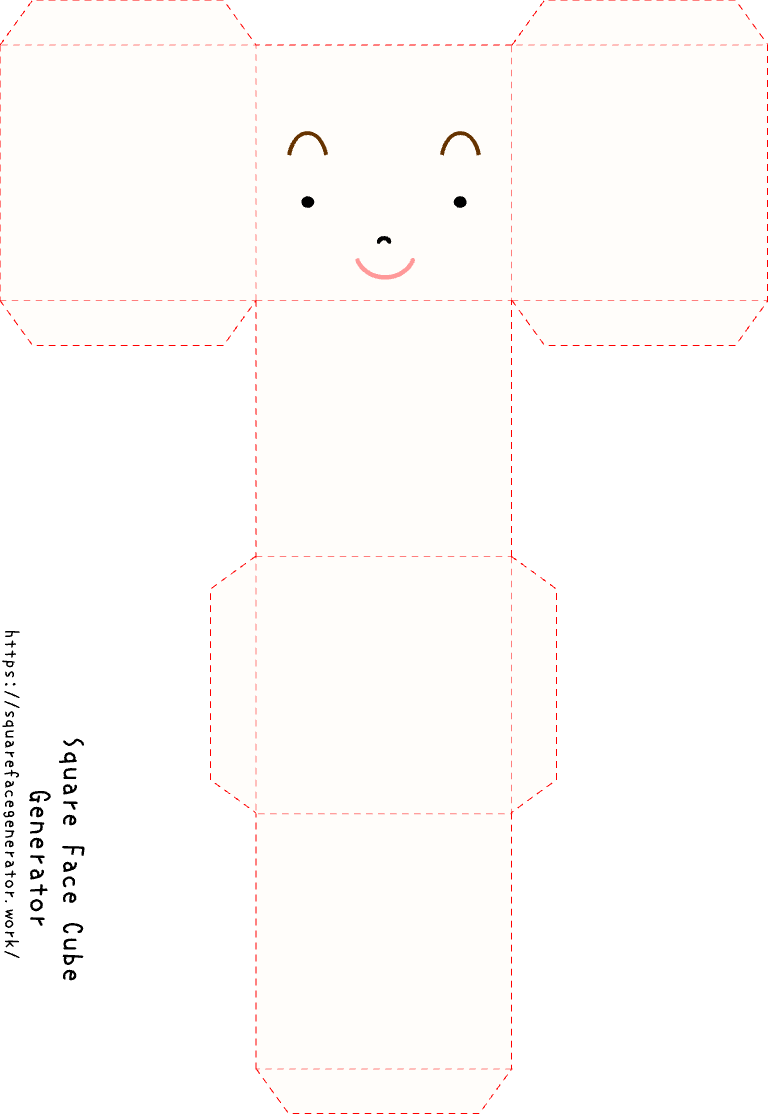
The page runs square-face-cube.swf through Ruffle.
The editor displays an expanded cube layout together with character controls.
Use SAVE inside the tool first. Continue with browser or system printing only after confirming that a file is available.
Before gluing, inspect the real print, cut lines, fold guides, and tab alignment.
Select CLICK TO START and wait until Ruffle displays the editor.
Use the editor controls to design the character, then inspect the flat cube layout before saving.
Select SAVE to download square_cube.png; open your saved file before continuing.
Prepare a printer, paper or card, scissors, and tape or glue. Open the saved file in the browser or system print dialog, preserve its aspect ratio, and make sure the whole outline and all tabs fit in preview.
After inspecting the real print, cut around its visible outer outline, keep the tabs attached, and crease the visible fold guides.
Dry-fit the folded shape before using tape or glue on the tabs. Inspect the finished physical result before treating it as complete.
The Ruffle tool shows a square-face editor and flat cube layout. SAVE downloads an openable PNG; printing and assembly happen outside the tool.
Use SAVE inside the Cube tool. It downloads square_cube.png, an openable 768 by 1114 RGBA PNG.
The tool downloads the template instead of opening a print dialog. Use SAVE, open the downloaded file, then print it from your browser or system.
Prepare a printer, paper or card, scissors, and tape or glue. Preserve the image aspect ratio and keep the full outline and every tab visible in print preview. Physical results have not been tested and can vary by printer and paper.
Only after checking the actual print, cut around the visible outer outline while keeping tabs attached. Crease the visible fold guides, dry-fit the shape, then secure the tabs with tape or glue.
Check that the outer cut line and fold guides are clear, every tab remains attached, the tabs align during a dry fit, and the finished shape closes cleanly.
Design the template, use SAVE, then open the downloaded file in your browser or system print preview.
Open generator