Pixel Art Icon Generator builds a complete character rather than a face-only portrait. The small canvas makes pose, clothing blocks, and background contrast more important than tiny facial details.
Design from the pose outward
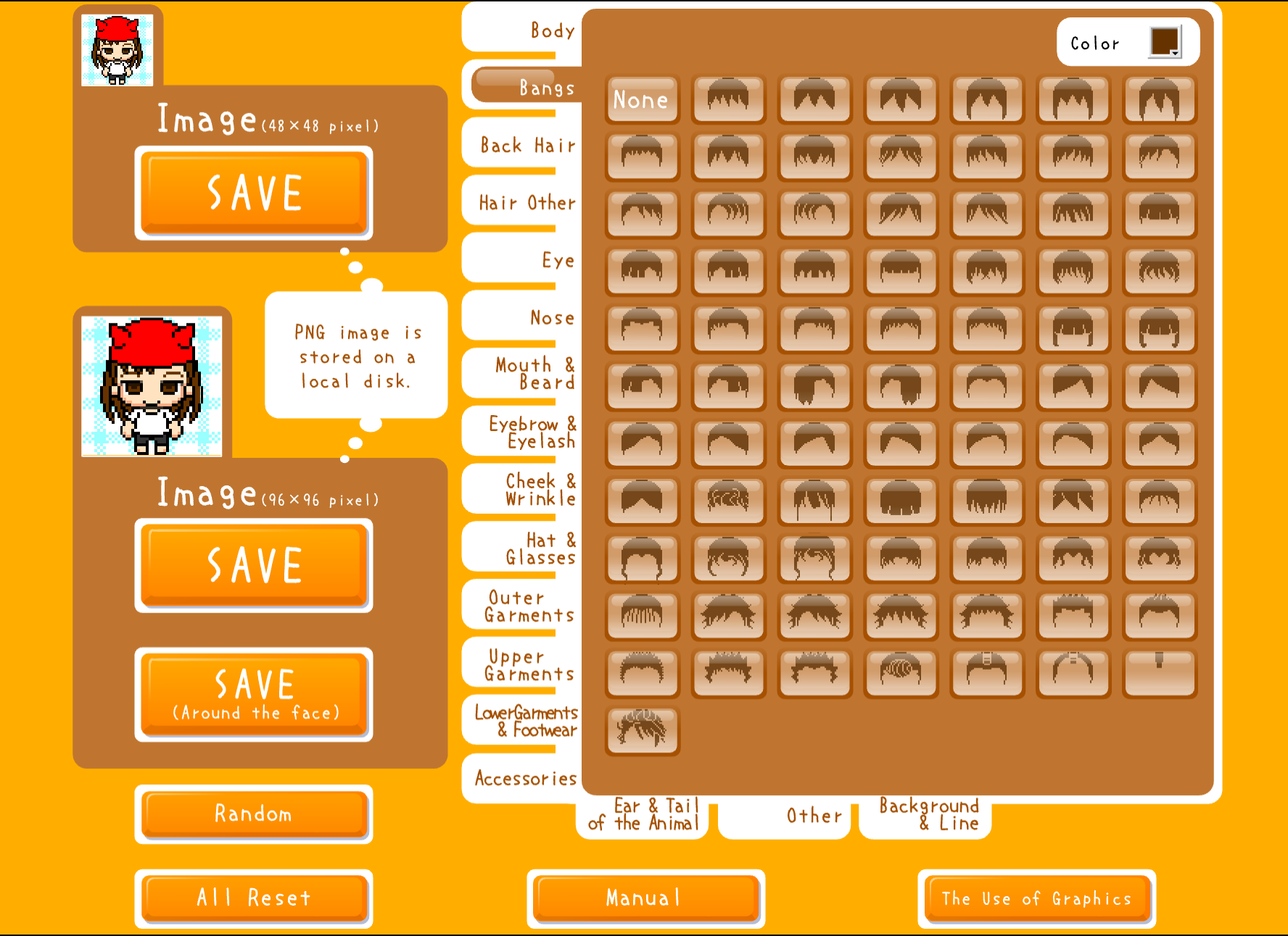
Open Full-body Pixel and press START. Pick the body and hair before small accessories. At this scale, the viewer reads the head, torso, and legs as a single silhouette.
Use this order:
- Choose the body and pose.
- Select hair with a clear outer shape.
- Build clothing from two or three distinct color areas.
- Add a small feature only when it remains visible.
- Set a background that does not merge with the character.
Compare both save sizes
The generator offers 48px and 96px saves. The 48px file shows the native compact character. The 96px option displays the same pixel design at a larger scale. Keep hard edges when resizing pixel art; smoothing can blur the blocks.
Use 48px to judge whether the pose works. Use 96px when a service asks for a larger upload, then check how that service resizes it.
Keep clothing readable
If the shirt, trousers, and background use similar lightness, the body becomes one block. Separate neighboring areas by lightness, not only by hue. A dark jacket on a slightly different dark background may still disappear.
Final check
- The head and body read as separate shapes.
- Arms and legs do not merge into the background.
- One clothing color leads the design.
- Both saved sizes open correctly.
- The uploaded profile still shows the full pose.
For a face-first pixel portrait, use Square Pixel. The choice is simple: full-body for pose and outfit, square portrait for facial identity.