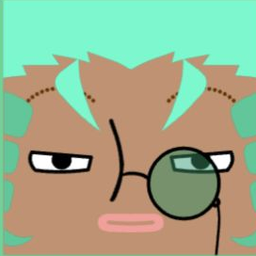
Social media avatar size sounds boring—until your face gets cropped or your logo turns blurry. This is a simple, "do-it-like-a-checklist" guide you can follow in minutes. Get it right once, use it everywhere.
Remember this one rule: make a 512×512 square, and you're safe almost everywhere
Most platforms show avatars as small circles, even if you upload a square. If your upload is too small, it gets blurry. So the easiest win is: upload a clean 512×512 square.
Why 512×512 specifically? It's large enough to stay sharp on high-DPI screens, small enough to upload quickly, and divisible by common display sizes (128, 256, 64). One file, zero headaches.
Avatar sizes (2026 quick table)
Tip: many platforms display a circle, so keep the important stuff in the center.
| Platform | Common display / recommended | I suggest uploading | Note | |---|---:|---:|---| | Discord | 128×128 | 512×512 | Looks sharper | | X (Twitter) | 400×400 | 512×512 | Circle crop | | Instagram | 320×320 | 512×512 | Circle crop | | LinkedIn | 400×400 | 512×512 | Great for logo/face | | WeChat | 640×640 | 640×640 or 512×512 | Higher = cleaner | | TikTok | 200×200 (often recommended) | 512×512 | Circle crop | | YouTube | 800×800 | 800×800 or 512×512 | Circle crop | | Facebook | 170×170 | 512×512 | Circle on mobile | | Threads | 320×320 | 512×512 | Same as Instagram | | Pinterest | 165×165 | 512×512 | Circle crop |
Square vs Circle: why your avatar gets "cut"
Upload = square. Display = circle (on many apps). Imagine a cookie cutter: the platform punches a circle out of your square.
This means the four corners of your image get hidden. If your logo extends to the corners, it gets chopped. If important text sits near the edge, it vanishes.
The easy "circle safe zone"
- Don't put text or tiny details near the edge
- Leave ~10–15% padding around the square
- Put the face/logo in the middle 70%
Think of it as designing for a circle, but saving as a square. The square gives you flexibility; the circle is what people actually see.
Common Avatar Mistakes to Avoid
1) Ignoring the circle crop
You design a beautiful square logo, upload it, and... half the design disappears. Always preview how your avatar looks as a circle before finalizing.
2) Using low-resolution images
Starting with a small image and scaling up creates blur. Always work at 512×512 or higher, then scale down if needed.
3) Too much complexity
Your avatar displays at 32-64 pixels in most contexts (comment sections, chat lists). Complex designs become unrecognizable blobs. Simplify.
4) Poor contrast choices
Light gray on white? Dark blue on black? Your avatar might look great in the editor but disappear on certain backgrounds. Test on both light and dark.
5) Forgetting mobile
Most social media usage happens on phones. Your avatar appears even smaller on mobile screens. If it's not readable at 40×40 pixels, simplify further.
Simple design tips (no designer skills needed)
- Always start with a square image
- Use at least 512×512
- Keep the key part away from edges
- Test tiny size: shrink to 48×48—still readable?
- Use bold colors that stand out
- Limit text to initials only (if any)
- Consider how it looks next to your username
Make it in one click with Square Face Icon Generator
Tool site: Square Face Icon Generator
Fast steps:
- Open the tool and click START
- Create your avatar (pick face, hair, accessories)
- Choose transparent background (clean on any theme)
- Download PNG at 512×512 (default size)
What you get:
- One export for all platforms
- Default 512×512 HD
- Transparent background fits any app
- No need to resize multiple times
Platform-Specific Tips
For Professional Networks (LinkedIn)
Keep it clean and recognizable. A clear headshot or simple logo works best. Avoid casual or overly creative designs—they can seem unprofessional in business contexts.
For Creative Platforms (Instagram, TikTok)
You have more freedom here. Express personality. Bright colors and unique styles help you stand out in crowded feeds.
For Gaming/Community (Discord)
Fun and memorable wins. Memes, characters, pixel art—these all work well. Just ensure it's still recognizable at small sizes.
For Video Platforms (YouTube, Twitch)
Your avatar appears next to every comment and in suggested videos. Make it instantly recognizable, even as a tiny thumbnail.
Canva / Fotor can do it—why use this instead?
- Canva/Fotor: powerful, but more clicks and choices
- Square Face Icon Generator: built for avatars, fast and focused
General-purpose design tools work, but they require more decisions. Avatar-specific tools get you to a finished result faster.
FAQ
Q: I uploaded 400×400. Why is it still blurry? A: The original file may be compressed. Export a fresh 512×512 PNG.
Q: My text is unreadable. A: Use fewer letters (1–2). Make it bold. Keep it centered.
Q: How do I avoid circle cropping? A: Leave padding. Keep important parts inside the center area.
Q: Should I use the same avatar everywhere? A: For personal branding, yes. Consistency helps people recognize you across platforms. For separate personal/professional accounts, different avatars make sense.
Q: PNG or JPG? A: PNG for avatars with transparency or sharp edges. JPG works for photos but may show compression artifacts. When in doubt, use PNG.
Q: How often should I update my avatar? A: Rarely, unless your appearance or brand changes significantly. Frequent changes make you harder to recognize.
External links
- X Help Center: help.x.com
- LinkedIn image specs/help: linkedin.com/help
- Social size guide (Hootsuite): blog.hootsuite.com
- Canva sizes: canva.com/sizes
- Fotor: fotor.com